1. Open NinjaTrader Settings
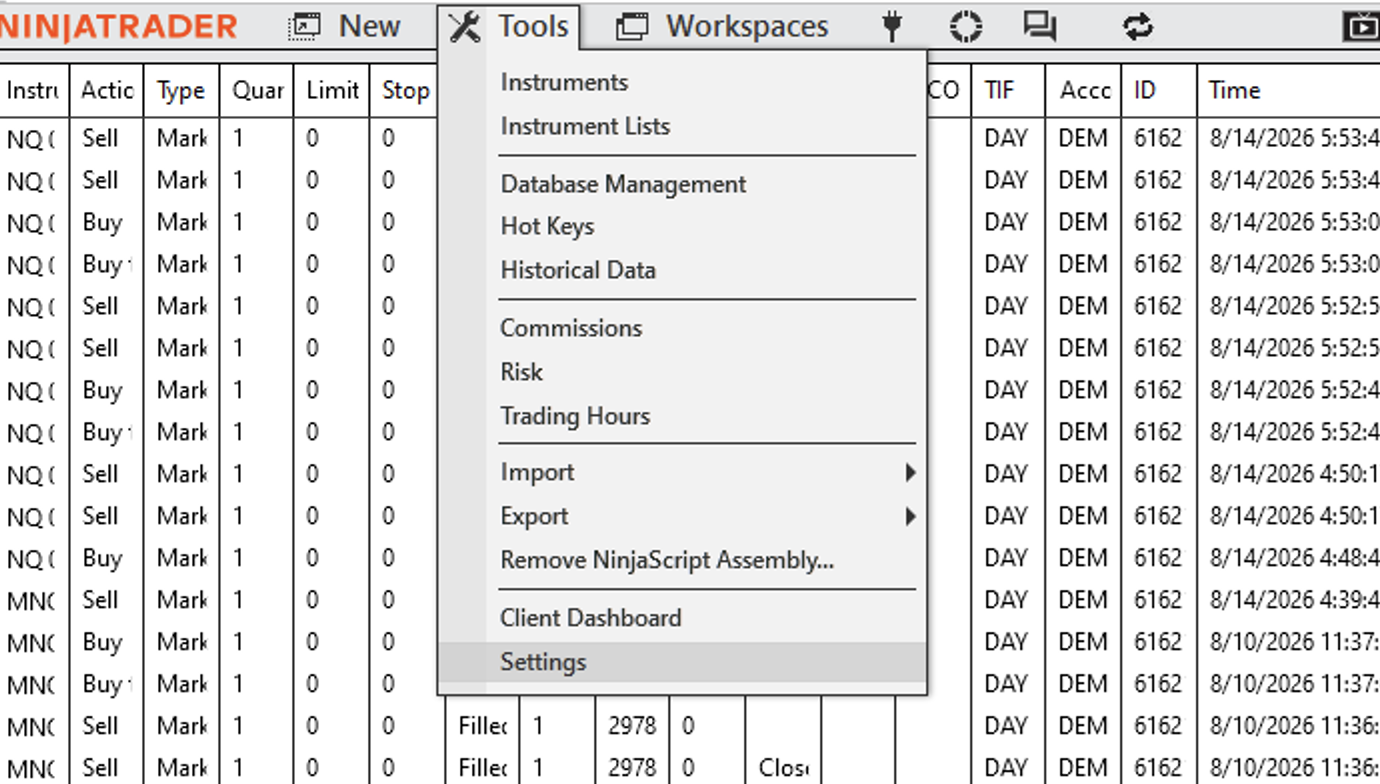
Start NinjaTrader 8. From the top menu, select Tools, then select Settings.
2. Enable the AT Interface
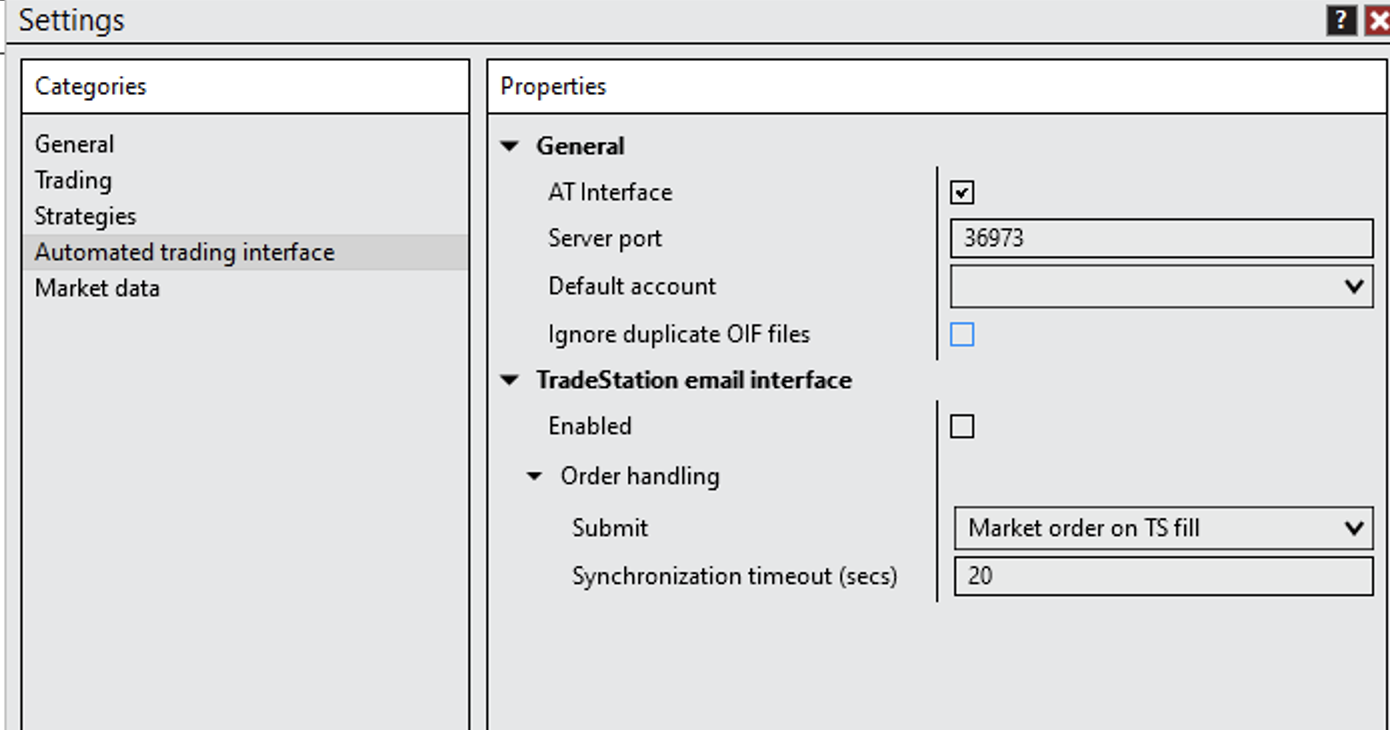
In the Settings window, select Automated trading interface from the Categories list. Under General, check AT Interface. Confirm the server port and choose the default account you want NinjaTrader to use.
3. Restart NinjaTrader
Save the settings, close NinjaTrader completely, and start it again. Restarting ensures the AT Interface is active before the desktop bridge connects.
- Leave NinjaTrader open with the AT Interface enabled.
- Launch the ApostleAlgo Windows desktop application.
- Paste the access key from the admin dashboard and select Connect.
- Confirm the desktop status shows that it is connected before sending a TradingView alert.
4. Generate an access key
Sign in to your ApostleAlgo dashboard, create your access key, and copy the raw value into the desktop client. The raw key is encrypted and remains available to you later. Administrators can manage users and keys; each regular user can create one key, delete it, and generate a replacement.
5. Configure TradingView
Copy the webhook URL belonging to that key into your TradingView alert. Send JSON with at least symbol and action. The client supports up to ten account1 through account10 fields, plus quantity, previousclose, limit_price, stop_price, oco_id, strategy, and strategy_id.
{
  "account1": "Sim101",
  "action": "{{strategy.order.action}}",
  "quantity": "{{strategy.position_size}}",
  "symbol": "ES SEP25",
  "previousclose": true
}
6. Keep the desktop bridge running
The client connects outbound over HTTPS/WSS and writes OIF files to the NinjaTrader incoming directory. Keep both NinjaTrader and the ApostleAlgo desktop app running while you want to receive alerts.
Up to 10 NinjaTrader accounts
Add account names as account1 through account10. Names must match NinjaTrader exactly. Leave unused account fields empty.
Key security
Access keys are hashed for authentication and encrypted for owner recovery. Delete a key immediately if it is exposed. Rotating a webhook URL invalidates the old URL.